
LLP new customer
Getting started guide
Welcome to LLP! We are so happy that your child / children have joined our community of learners. We want to make sure that you and your child can get as much out of LLP as you can. To help you get started we have created this guide to help you find your way around. It covers all the practical stuff with step by step instructions and screenshots of each step to make is simple and stress free. At any point, if you need support, send us an email or contact us via the contact page on the website – we are here to make your journey as a home educating family as easy and as special as we can.
First things first — setting up your child
When you bought your classes, an adult account was created for you automatically. Before your child can get to their classes, you just need to create their child account.
Here’s how:
1. in and go to your account area.
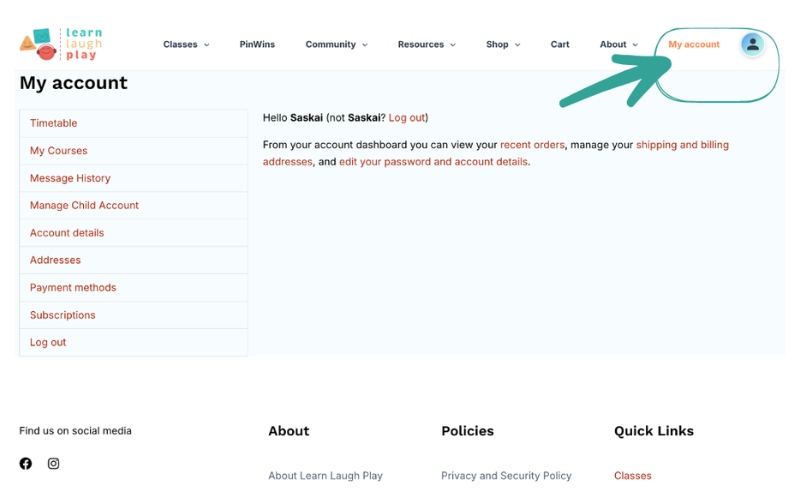
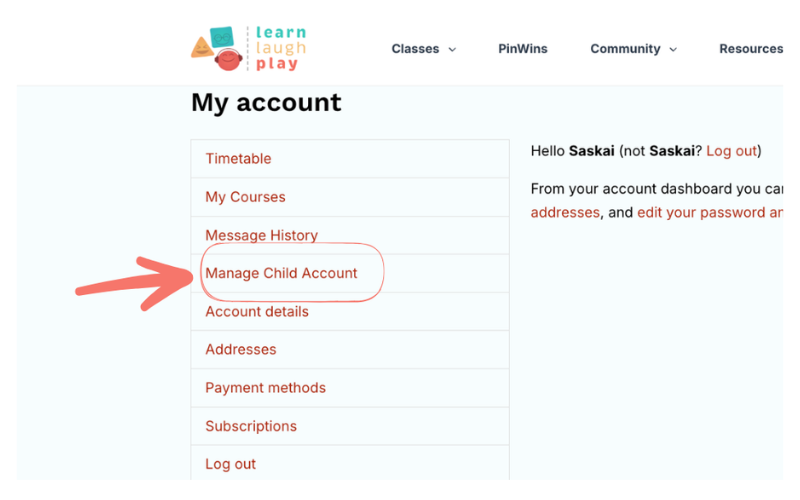
2. Click Manage Child Account.
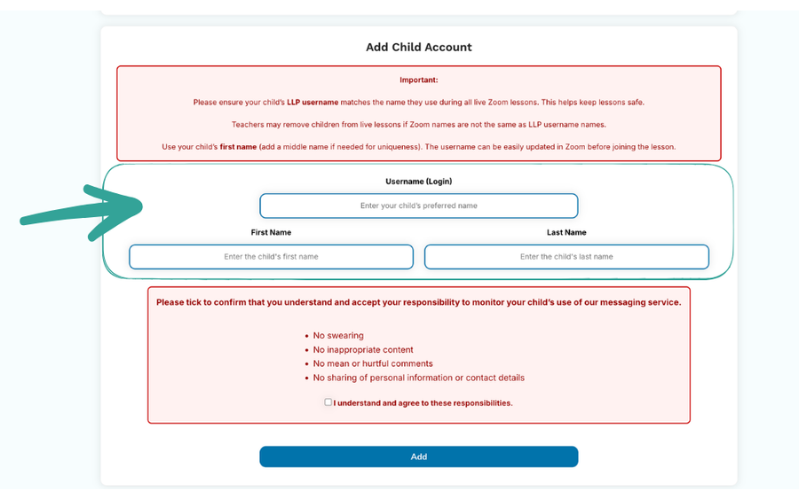
3. Scroll down the page to find a red looking box, where it gives you the option to add your child’s name.
4. Assign them their classes.
Once you have added a child, choose from the list of classes on the same page which onces you want them to attend. If you have one child using LLP this will be all of them but ifyou have more than one child choose based on which lessons each child will be attending.
Do the same for each of your children on the Manage Child Account page.
One thing worth knowing: your £3 family classes can be assigned to all of your children because membership is unlimited.
Your £6 classes can only be assigned to the one child they were bought for. So if you bought one £6 class, it’ll only let you add it to one child.
Your child’s username – VERY IMPORTANT!
When you set up your child, the website creates a username for them — their chosen name followed by a hyphen and two random letters, like Jenny-jd.
This username is important because it allows us to instantly know who your child is on a Zoom call. Your child needs to type it in every time they join a live Zoom lesson. The reason is simple – in a class, it means we can instantly see exactly which child is which, and reach you quickly if we ever need to. So please make a note of it and remind your child to use it every time.
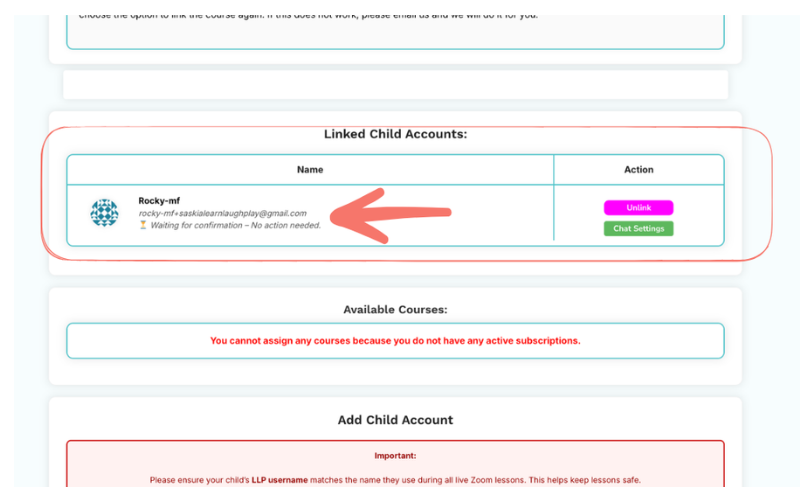
IF you forget what it is, children’s usernames are visible in their profile and on your manage child profile page.
Click on Manage Child Profile, then scroll down the page about halfway, to locate your child’s username.
Switching between accounts
Once your children are set up, you can switch between everyone’s accounts just like you would on Netflix. Click the little person icon at the top right of the website and choose whose account you want to see.
Your child’s account works a little differently to yours. Inside theirs, they’ll find their timetable, their courses, their messages, and a logout button — and a friendly bar at the top with leads to child friendly information about LLP.
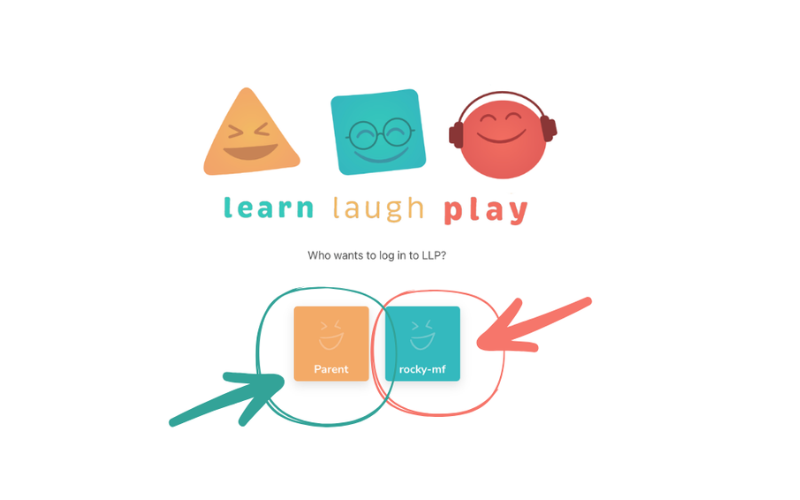
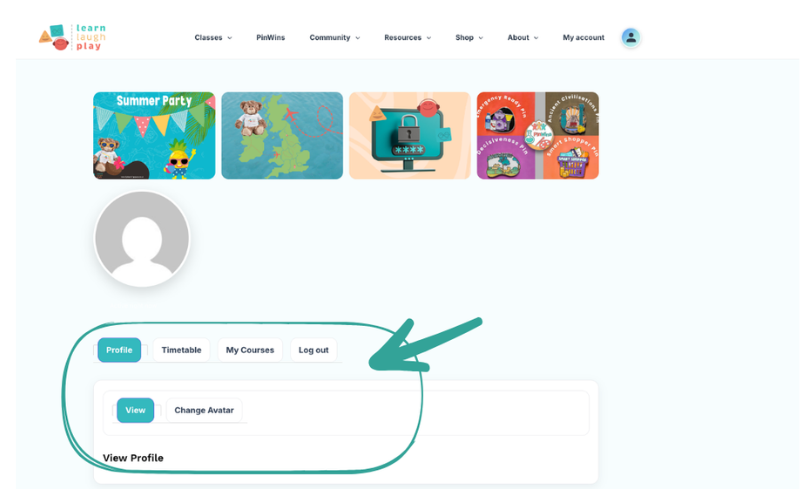
Finding your classes
You can get to your classes from either your account or your child’s account, and there are two ways in:
Timetable gives you a weekly overview of all the classes coming up that week. It also shows you last week and next week, so you can always see what’s ahead.
My Courses shows you all the courses you currently have a live subscription for
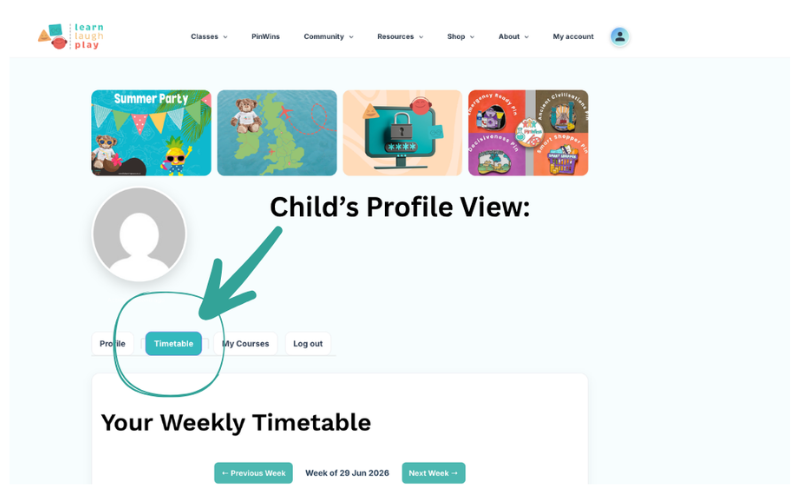
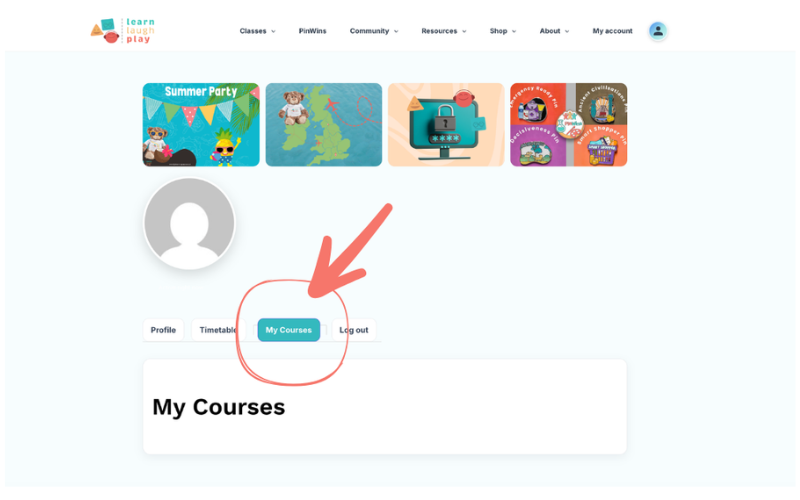
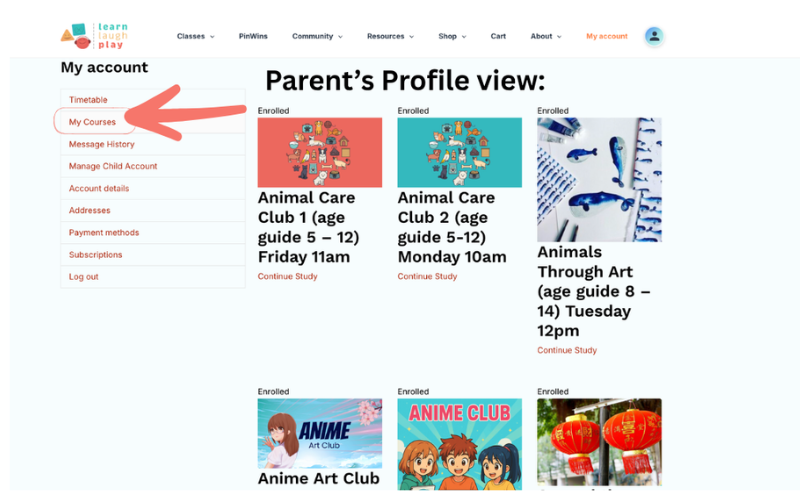
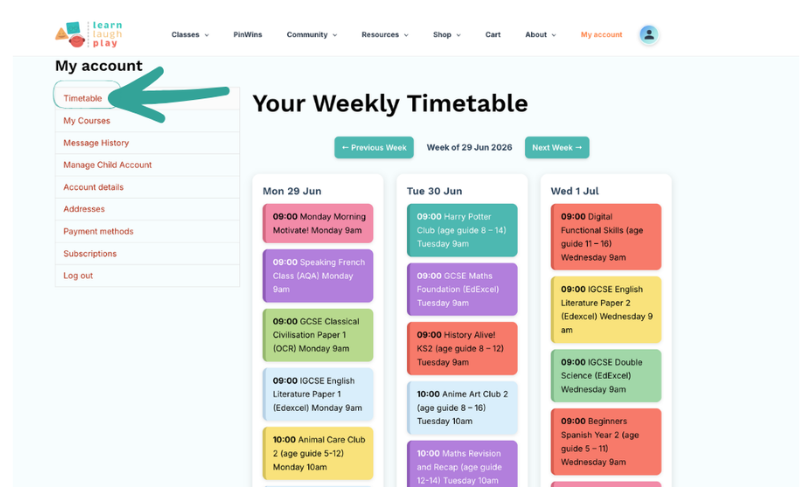
Note – the timetable feature is brilliant and we love it, but it does rely on the teacher using the right title each week for their lesson and it is a little sensitive! One extra letter or the wrong day or time and it can’t recognise the lesson so it doesn’t include it! So, if your lesson is ever not visible on the timetable, click on My Courses and the chances are it will be showing there!
Either way, once you click into the course itself, you choose the lesson you want. Inside each lesson you’ll find the Zoom code for the live session (or the recording of the last one), and a Materials tab. Click Materials and you’ll find anything your child needs for the upcoming lesson.
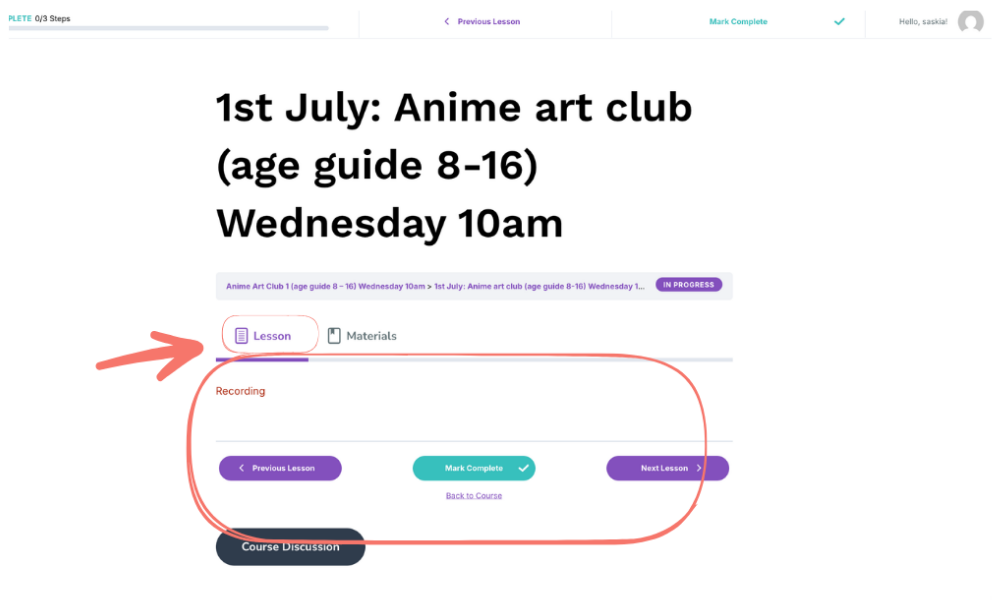
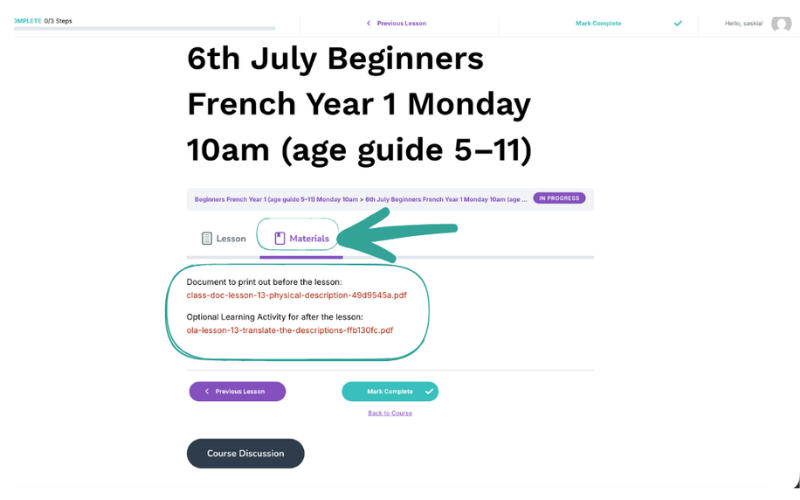
We always do our best to have all the materials for the week ahead ready by Sunday evening, so if you like to print things off, you can do it all in one go. But there’s no need to print — children can work straight from the worksheets on a device if you’d prefer.
Cameras and safeguarding
Children need to have their camera on at the very beginning of each Zoom lesson. This is just so we can do a quick visual check, for safeguarding reasons. After that, children are welcome to keep their cameras on or off for the rest of the session — whatever they’re comfortable with.
If your child feels too anxious to turn their camera on, for any reason, please don’t worry — we have a simple solution. Get in touch and we’ll arrange a quick password setup with you over Zoom. Give us a bit of notice to arrange this rather than trying to do it five minutes before a lesson! We’ll meet with you for 5 minutes and just need to see your child very briefly, and then we’ll set up a password they can use in all of their lessons. We’ll let all their teachers know their password, so everytime the teacher asks for camera to be turned on at the beginning of the lesson, your child can just type their password in without needing to worry at all. The teacher will just quietly check it without bringing any attention to your child. If you add any new lessons later, just let us know so we can pass the password on to the teacher of that class.
How your child messages teachers and classmates
One thing that makes LLP so great is that if you’re happy for them to, your children can chat to their classmates outside of class. This means there are real possibilities of making friends, collaborating on learning outside of class and recognising their friends when they go to class.
The first time they send a message, they need to go in through My Courses or the Timetable and select the course. Underneath the three lessons, there’s a button that says Send Messages. When they click it, they’ll see the teacher for that group at the top, and underneath, the membership list — all the children currently enrolled in that class. Some will have avatars, some won’t.
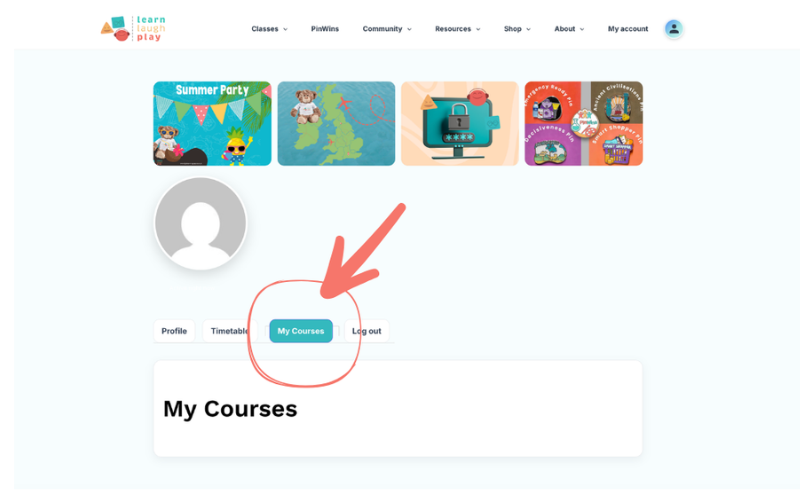
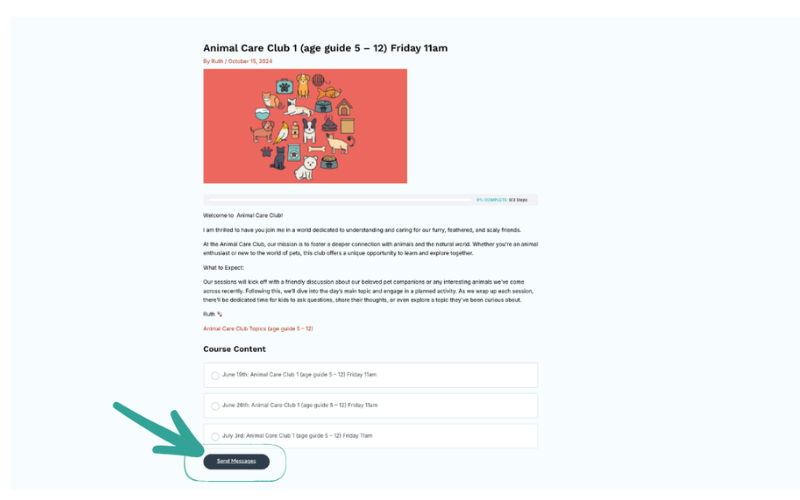
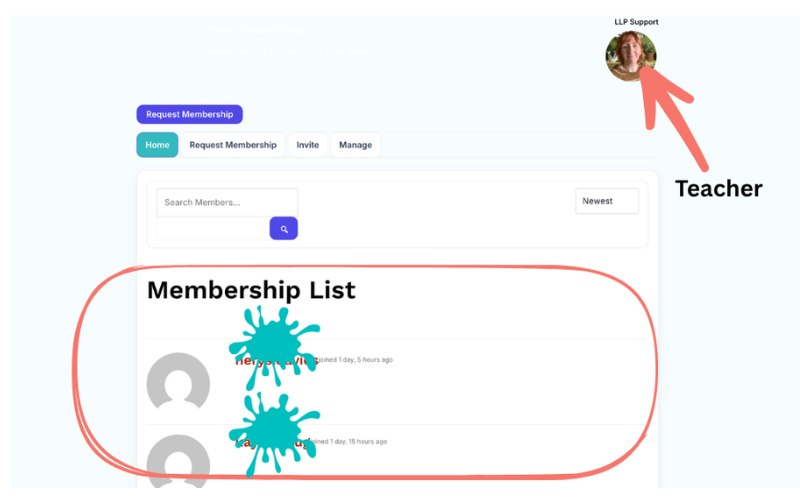
To message someone, they click on a name — the teacher’s or another child’s — then click Private Message, type into the message box, and click the blue arrow to send.
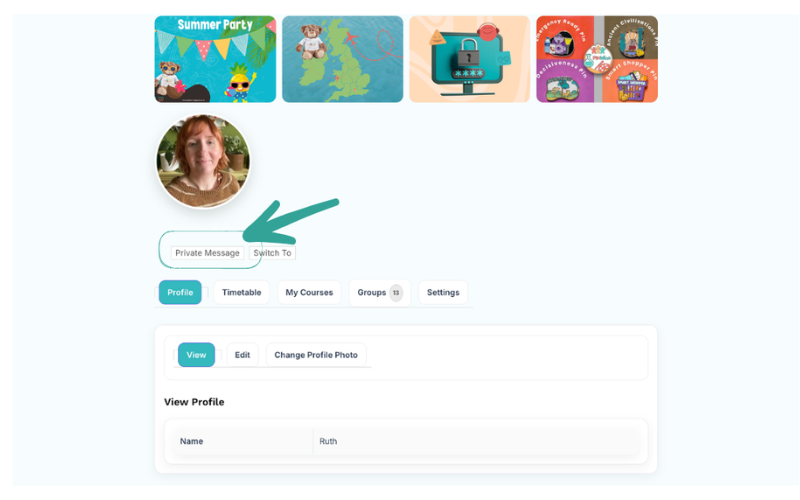
All the messages they’ve sent are then saved in the Messages tab in their account. But that first message always starts from My Courses or the Timetable.
Your child can also reach out to their teacher this same way any time they need to. We do ask that parents and children are respectful of teachers’ time because they aren’t paid to read hundreds of messages a day! But that being said, the teachers are amazing at giving a friendly word of encouragement and genuinely care about their students.
For some children, just typing a first hello to a classmate is a genuinely big deal. For others, it’s noticing a quieter child and reaching out. Both matter enormously, and we’ve seen real, lasting friendships grow through LLP.
As always, please keep an eye on your child’s messages so we can all make sure conversations stay kind and safe and you are happy with what they are sending and what they are receiving. There is a security system in place to flag up potentially risky or inappropriate words and our admin scan the messages manually in case anything is a cause for concern but it is your responsibility as a parent to ensure your child is interacting safely, kindly and in a way that you are happy with. When you set up your child profiles you are required to tick a box that is an agreement that you take on this responsibility.
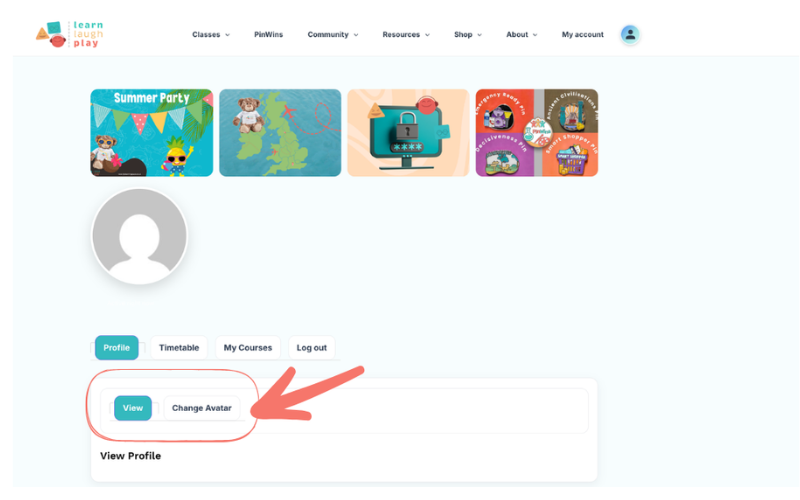
Changing your child’s avatar
Your child can change their avatar in their account area. Please make sure you are happy with their avatar choice.
About keeping children safe in lessons
Our lessons aren’t childcare, and it is impossible through a screen to keep your child safe. It’s really important that a parent is always around in the background in case your child needs you.
For younger children especially, it’s lovely if you can sit in on the lesson and be your child’s own personal learning assistant. This also means that you can make use of the learning in the lessons throughout the week when you are looking for activities to do with your child. With older children you don’t need to be right beside them, but please do stay nearby — both so you know what your child is working on, and so you can make sure they’re on task and only typing things into the chat that they should be. It helps everyone have a calm, happy lesson.
The overall atmosphere of our lessons is calm, fun and positive. The teachers are super relaxed and friendly and they take seriously their job of making sure learning is fun and positive. As part of that at the beginning of each lesson, the teacher will establish some clear boundaries, for example, only type in the chat things that are relevant. On the rare occasion that a child does not follow the teachers guidelines to the point that is negatively affecting other learners, that child will be temporarily removed from the lesson and you will need to contact admin in order for us to establish if your child can return to the lesson or not. The reason that we do this is to protect the calm and positive atmosphere within the class. We have a lot of children come to us after experiencing a really difficult time in a school based class and it is our priority to make sure that everyone feels as if they are in a safe learning environment. Please see our behaviour policy for more information. Generally this is very rare and our learners want to be there and really enjoy their learning!
Book a Call
In term time Jacqui dedicates an hour a day for chatting to new parents and helping them settle in. Send a quick email to [email protected] if you would like a call and we will get you booked in. You can choose from 3pm Monday, Tuesday, Wednesday or Thursday or 2pm on a Friday. If you can give us a few options that would be appreciated in case your first choice is already booked. Jacqui is happy to help with LLP specific questions and any help you need in general with getting started as a new to home education family. She has a huge amount of experience as a home ed parent and through working with LLP parents for the past 5 years.
Community, not just classes
Learn Laugh Play prides itself on being a community and we are always looking for more ways to support our learners and their parents/carers. We have a free forum which is hosted on Skool (a platform for communities that has nothing to do with schools!!) which you can join by clicking on the link below:
LLP Parent Forum
Here are just a few of the exciting things that LLP offers to support you and your child and provide them with the very best experience as a home educated child. You can click on any that you are interested in to find out more. A few things are still being set up, so cannot be clicked on yet. This includes the free Home Education and Belonging Course, LLP Wellbeing, the Live Learning Broadcasts and the LLP Tribes – all of these should be up and running in the next few weeks!



We’re so glad you have joined our lovely community. Please reach out if you need any support whatsoever.
Lisa and the rest of the team at Learn Laugh Play